Many new facets of playback for the purpose of practise of a composition have been introduced. See Sarali as an example.
Show tracks
You may have noticed that documents containing audio tracks no longer ask you whether you want to just read the notation or load the tracks when you visit its page. Instead, all documents load in “reader” mode. If you want the audio tracks, clicking the “Show tracks” button at the top of the page will bring up the (hopefully) familiar “tracks panel”.

After the tracks panel is opened, this changes to “Hide tracks” which can be used to hide the tracks panel without unloading the audio. Subsequent show/hide clicks merely makes the tracks panel visible/invisible.

Presets
The top of the “Tracks panel” now shows “PRESETS” as shown below. Each section of the document is now available as a preset for you to choose and add to your playlist for playback, including the “Whole piece”. Hovering over a preset will highlight the group of notation lines that will be added by clicking it.
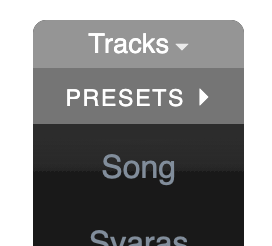
Clicking PRESETS will reveal the notation groups available for playback as a whole.
Note for document authors: These notation groups are determined automatically from the section headings of your document, given like
## Pallavi,## Anupallaviand so on. No further work is necessary on your part.
Clicking PRESETS again will bring back the player controls.
When you click a particular preset, you’ll be presented with a few options. It is likely you’re just trying to play that section, and in that case you can just click “OK” and move on. The other options are intended for practise.
Note: The presets are only added to the play list and will not play immediately. You’ll have to click the play button on the tracks panel to play your selection.
“Playback” will add the lines to be played back normally. “My turn” will add them as “silent lines” intended for you to play over, and “Playback then my turn” will add them twice – once to playback for you to listen, followed by once as silent lines for you to practise.
Player options
The usual player options and controls such as tala, hints, loop, speed and shruthi apply.
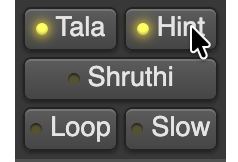
You may notice that the player options are more compactly presented and have a new “Shruthi” button which will turn on/off a shruthi tone. Changing the playback pitch will automatically change the tone’s shruthi as well.
Improved playback through playlists
The playlist playback will now try to maintain tala consistency to the extent possible, even inserting tala portions necessary to align with the notation. This is the most significant change to the playback method. For example, if you’re on a page where a line ends abruptly after the lagu of Adi talam (perhaps intending for the dhrutams to be silent), and you add another line that begins at samam, then the player will insert the missing dhrutams during playback and show it to you. The document is not “edited” to do the insertion. It is merely added for the purpose of playback.
As usual, clicking on a notation line will play just that line using the selected track.
Enter and Leave markers
Each line of the notation can now have markers called “enter” and “leave”, at the boundaries of the aksharas of the tala. For these to be in effect, the track selected for playback must have timing (such as svaras or singing or instrumental play, as opposed to narrating the words like speech).
If you hold the Control key and hover over a line, having selected a track
with timing, you will see a flag mounted at the akshara closest to your mouse
cursor position.
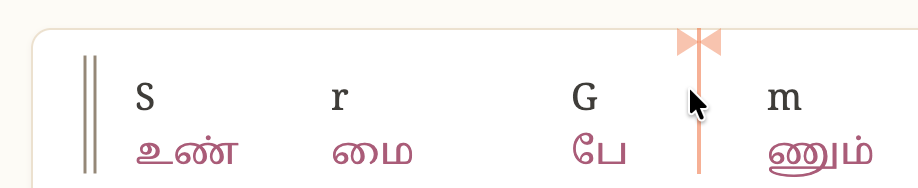
The ▶︎ marker marks an “enter position” and the ◀︎ marker marks a “leave position”. The concept of an “enter position” is that when another line is played before the line with an enter position, it will try to join the line at the enter position than at the start.
This is useful to practise pallavis with an eduppu at a different position than the samam.
Similarly the “leave position” indicates the point at which the notation line’s playback must join to the line that follows. If there is a gap in the tala between these two positions, it will be “filled in” with silence and indicated visually that that’s what is happening. The tala will continue through these fillers.
In the most common cases, you will want consecutive leave and enter positions to be at the same position within the tala so there is no such “filler” introduced.
Here are two lines of Sarali with a leave marker at the end of the laghu on the first line and an enter marker at the same point on the second line. If you then add these two lines to the playlist for playback, the laghu of the first will be played, immediately followed by the dhrutams of the second – i.e. “SrGm mGrS” – because the player will “leave” the first line at the end of the laghu and “enter” the second line at the start of the laghu (which are the same position relative to the tala cycle).
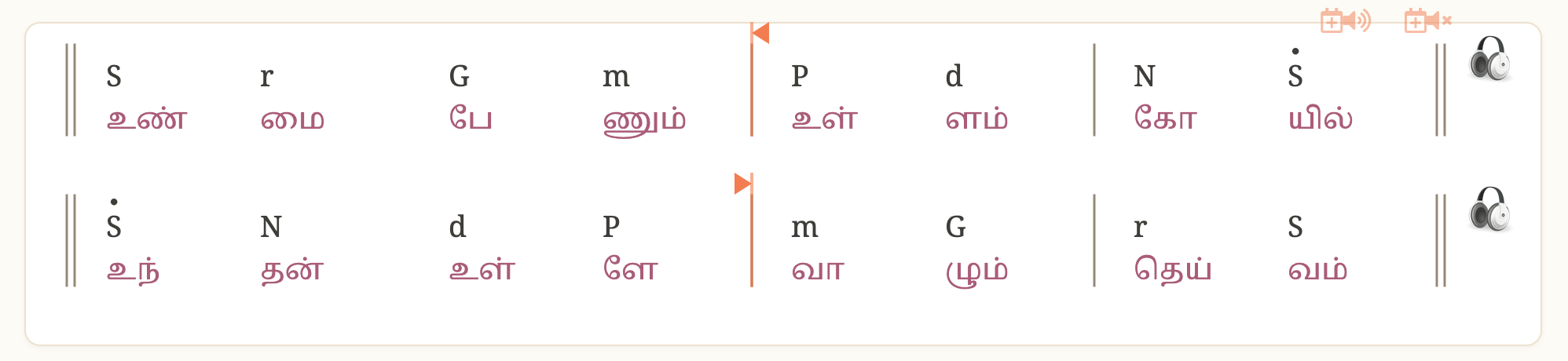
You can set only one enter position and one leave position for a given line.
Atoms
The “atoms” facility helps a student trying to understand individual “phrases” of a line. When you have a playback track selected and you hover over a line, you’ll see the “ATOMS” tab popup under the line.

When you click the ATOMS tab, it will expand into the groups detected on the line. Clicking on a group will just play that group alone back. These groups are determined based on the lyrics and the svara (prescriptive) lines in order to be meaningful musically. Each group can be expanded by clicking the triangle next to it, to break it down even more. This playback responds to tala, looping and playback speed controls, but does not keep tala during the loop (unlike when playing back whole lines), which is the most useful for practise. The intention is to highlight how the tala flows through the phrase, while not lingering on an entire avrtam just to play a phrase.
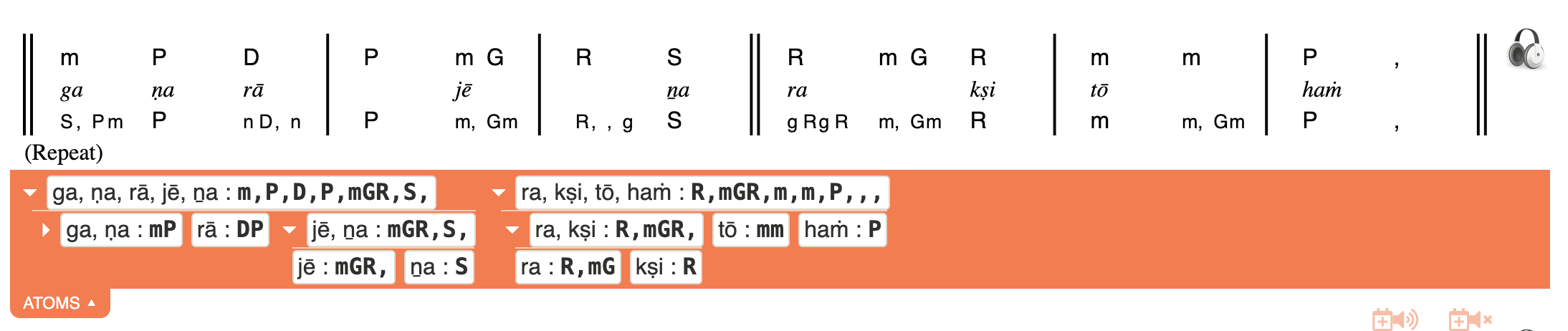
For document authors: You don’t need to do anything in your document to make these “atoms” appear. We believe we have something reasonably workable here and will improve the method of decomposition over time as well. However if you want to mark a point in the notation line as a candidate for splitting a phrase, you can use the
'(single quote) character at the start of a svara to suggest such a split point. This gives you some control over the top level split without adding the burden of determining it everywhere.
- Notations
- Tala Keeper
- Talks
Twitter · RSS